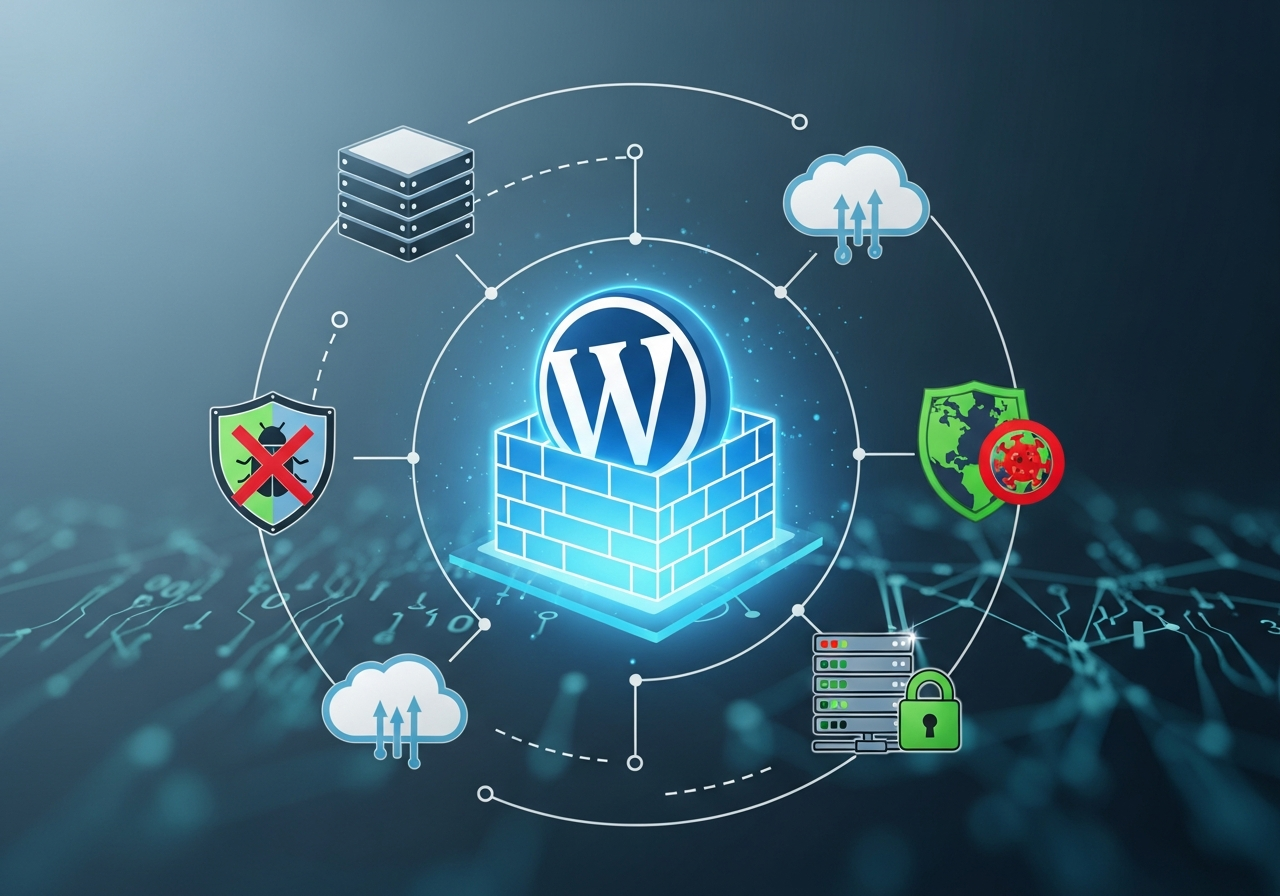
If you run a WordPress website, one thing is absolutely certain: security is no longer optional. With cyberattacks increasing every year, even small business websites, personal blogs, and portfolio sites are becoming targets for hackers. The reason? Attackers know most people skip the basics—updates, firewalls, backups—leaving their sites exposed.
The truth is simple:
A secure WordPress site performs better, ranks higher, loads faster, and protects your brand reputation.
In this guide, we’ll break down the professional-level security framework you should be using—firewalls, backups, malware scanning, and real-time monitoring—so you can lock down your site like an expert, even if you’re not technical.
Why WordPress Websites Get Targeted
WordPress powers over 43% of the internet, making it the biggest CMS in the world. Popularity attracts attention—including unwanted attention.
Hackers target WordPress websites because:
- Thousands of outdated plugins act as open doors
- Weak passwords make logins easy to crack
- Cheap hosting lacks advanced security
- Most users forget updates
- Many people don’t install any firewall or malware scanner
The good news? Nearly 90% of WordPress hacks are preventable with the right setup.
1. Start With Strong Foundations: Updates & Passwords
✔️ Keep WordPress Core Updated
Outdated WordPress versions are like unlocked gates. Every update includes security patches that close vulnerabilities.
✔️ Update Themes & Plugins
A single outdated plugin is enough to compromise your entire website.
✔️ Delete Unused Plugins
Inactive = dangerous. If you aren’t using it, remove it.
✔️ Use Strong Passwords
A secure site begins with strong logins. Use:
- Uppercase + lowercase
- Numbers
- Special characters
- Minimum 12–15 characters
Never reuse passwords across accounts.
2. Install a Firewall (WAF): Your First Line of Defense
A Web Application Firewall (WAF) filters out:
- Malware
- Brute force attacks
- Bot traffic
- SQL injections
- Cross-site scripting attacks
Recommended WordPress Firewalls
- Wordfence Security – Real-time monitoring + firewall
- Sucuri Firewall – CDN + security + malware cleanup
- MalCare Security – Lightweight, excellent for shared hosting
A firewall is like a digital security guard—it blocks bad traffic before it reaches your site.
3. Enable Automatic Backups (Your Website Insurance Policy)
If something goes wrong—malware, server crash, human error—backups are your only safety net.
Use a 3-Layer Backup Strategy
- Website backups (daily or real-time)
- Server-level backups (hosting panel)
- Cloud backups (Google Drive, Dropbox, Amazon S3)
Best Backup Plugins
- UpdraftPlus
- BlogVault
- Jetpack VaultPress
A professional setup includes multiple recovery points, so you can roll back instantly.
4. Scan for Malware Regularly
Malware can silently infect your site without any visible signs.
Warning signs include:
- Random redirect links
- Suspicious admin users
- Slow website
- Hosting suspension
- Google “This site may be hacked” warning
What Malware Scanners Do
- Detect malicious code
- Highlight infected files
- Remove backdoors
- Block reinfection
Plugins like Wordfence, Sucuri, and MalCare provide automatic scanning + repair.
5. Harden Your WordPress Configuration (Pro-Level Security)
These are security enhancements professionals use:
✔️ Disable File Editing
Prevents hackers from modifying theme and plugin files.
✔️ Limit Login Attempts
Stops brute-force password guessing.
✔️ Change Login URL
Makes it harder for bots to find your login page.
✔️ Disable XML-RPC
A major target for botnet attacks.
✔️ Enable Two-Factor Authentication (2FA)
Adds an extra verification step to logins.
✔️ Use HTTPS / SSL Certificate
Encrypts all communication between your site and your visitors.
These small tweaks dramatically improve security and reduce risk.
6. Protect Your Hosting Server (The Most Overlooked Step)
Your site is only as secure as your hosting server.
Cheap hosting = weak security.
Choose hosting with:
- Dedicated firewalls
- Malware scanning
- Automatic backups
- DDoS protection
- Updated PHP versions
- Isolated environments
For business websites, avoid low-tier shared hosting.
Use Managed WordPress Hosting like Kinsta, Cloudways, or Hostinger Pro.
7. Real-Time Monitoring & Activity Logs
Monitoring tools help you track:
- Logged-in users
- Login attempts
- File changes
- Plugin updates
- Suspicious IP addresses
This gives you complete visibility, so you can take action before damage occurs.
8. Security Maintenance Checklist (Print This!)
Weekly:
- Update WordPress
- Update plugins
- Clear logs
- Backup site manually (optional)
Monthly:
- Scan for malware
- Audit admin users
- Test backup restore
- Change passwords
Quarterly:
- Remove unused themes/plugins
- Test site speed (malware slows sites)
- Review hosting security features
This routine alone puts you ahead of 98% of website owners.
Conclusion: Securing WordPress Isn’t Complicated — It’s Consistent
Security is not a one-time setup. It’s an ongoing habit.
With the right firewalls, backups, malware scanners, and routine maintenance, you can protect your data, your customers, and your business reputation.
A secure site is a fast, SEO-friendly, trustworthy, and high-performing site.
Start today, and your WordPress website will stay protected from the cyber threats of tomorrow.
📞 Want to talk to an advisor?
Drop us a message at edubytesbooster@gmail.com or Book a free call →
+91 9123756080
Follow us for updates, news, and more information’s:
Instagram | LinkedIn | Facebook | YouTube — @ Edubytes Booster
FAQ’s :
1. How do I secure my WordPress website from hackers?
Install a firewall, update plugins regularly, use strong passwords, enable backups, and scan for malware. These steps prevent most common attacks.
2. What is the best security plugin for WordPress?
Top options include Wordfence, Sucuri Security, and MalCare. They offer firewalls, malware scanning, login protection, and real-time monitoring.
3. How often should I back up my WordPress website?
Business and eCommerce websites should back up daily or in real-time. Smaller sites should back up weekly. Always store backups in the cloud.
4. How can I remove malware from my WordPress website?
Use a plugin like Wordfence or MalCare for automated cleanup, or hire a professional malware removal service if the infection is complex.
5. Why is my WordPress site getting hacked repeatedly?
Repeated hacks usually mean a backdoor exists. Remove unused plugins, update everything, switch to secure hosting, and perform a deep malware scan.
6. Does hosting affect WordPress security?
Yes. Secure hosting provides firewalls, malware scanning, DDoS protection, and updated PHP versions, which drastically reduce vulnerabilities.
7. Can changing my login URL improve WordPress security?
Absolutely. Custom login URLs reduce brute-force attacks by making it harder for bots and attackers to find your admin login page.